Setting up SFTP Access (FileZilla / WinSCP)
SFTP (Secure File Transfer Protocol) allows you to manage your server files, upload large worlds, and edit configurations more efficiently than the web-based file manager.
1. Locate your SFTP Details
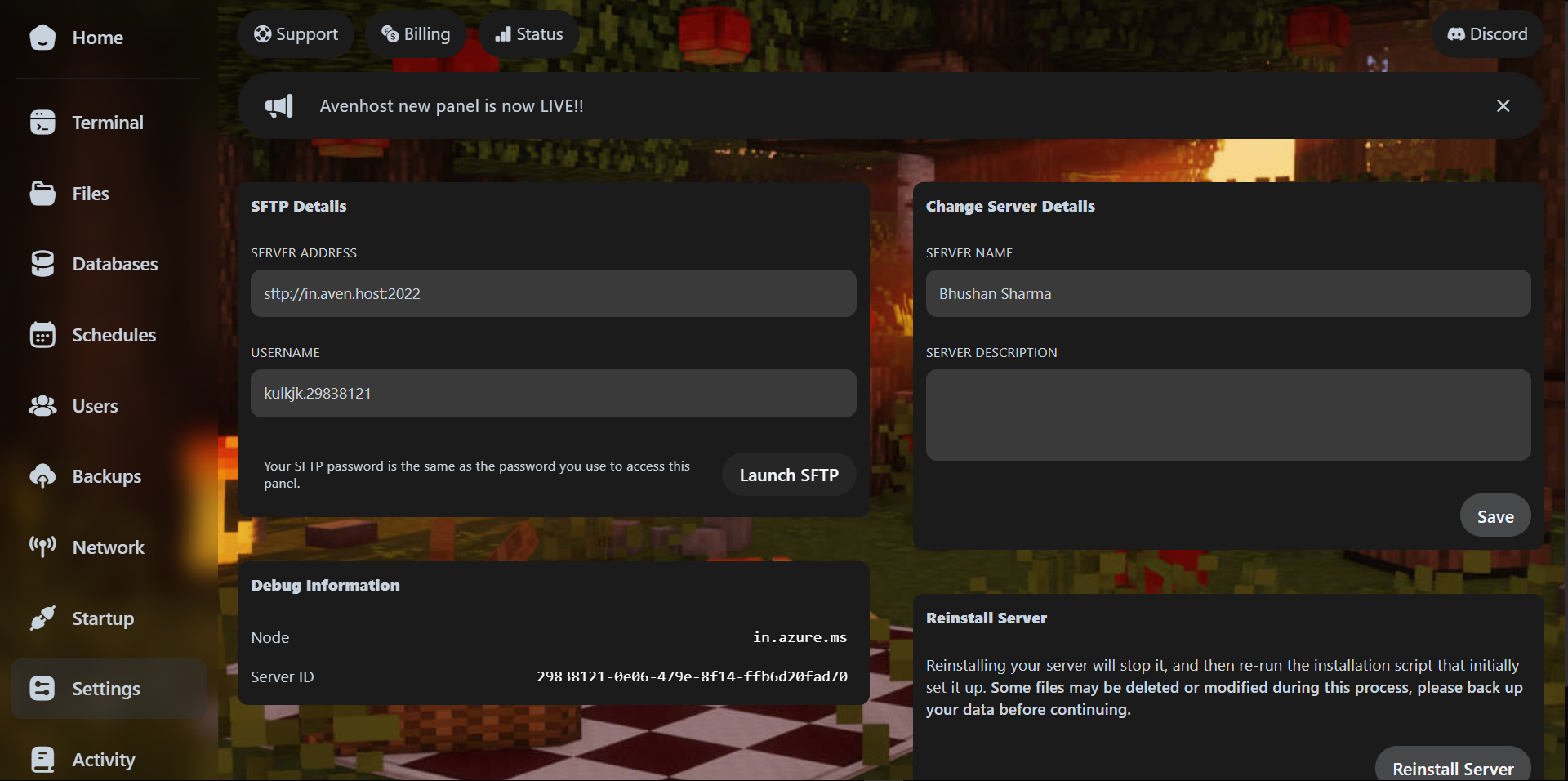
Log in to your Game Panel and select the server you want to manage. On the left-hand sidebar, click on the Settings tab.
You will see a section titled SFTP Details. Here you will find your
Connection Address (Host) and your Username.
2. Choose your SFTP Tool
You can use any standard SFTP client. We recommend:
- FileZilla: Best for beginners (Windows, Mac, Linux).
- WinSCP: Powerful tool specifically for Windows users.
- Cyberduck: Great interface for Mac users.
3. Connect to your Server
Open your chosen tool and enter the details found in your Settings tab:
- Host: The full
Connection Address(e.g.,sftp://node1.aven.host:2022) - Username: Your panel username (usually ends in
.xxxxxx) - Password: The same password you use to log in to the Avenhost Game Panel.
- Port:
2022(Standard for Pterodactyl panels)
4. Managing Files
Once connected, you will see your server's root directory. You can now drag and drop files from your computer directly into the /home/container folder to upload them.
Security Note: If you have 2FA (Two-Factor Authentication) enabled, some SFTP clients may require you to append your 6-digit code to your password or use an App Password if supported.
Common Issues
Connection Timed Out: Ensure you are using Port 2022 and that your local firewall isn't blocking outgoing connections on that port.