How to Reset Your Panel Password
Keeping your password updated is essential for maintaining the security of your game server. You can change your password at any time directly from your account settings.
1. Go to your Account Settings
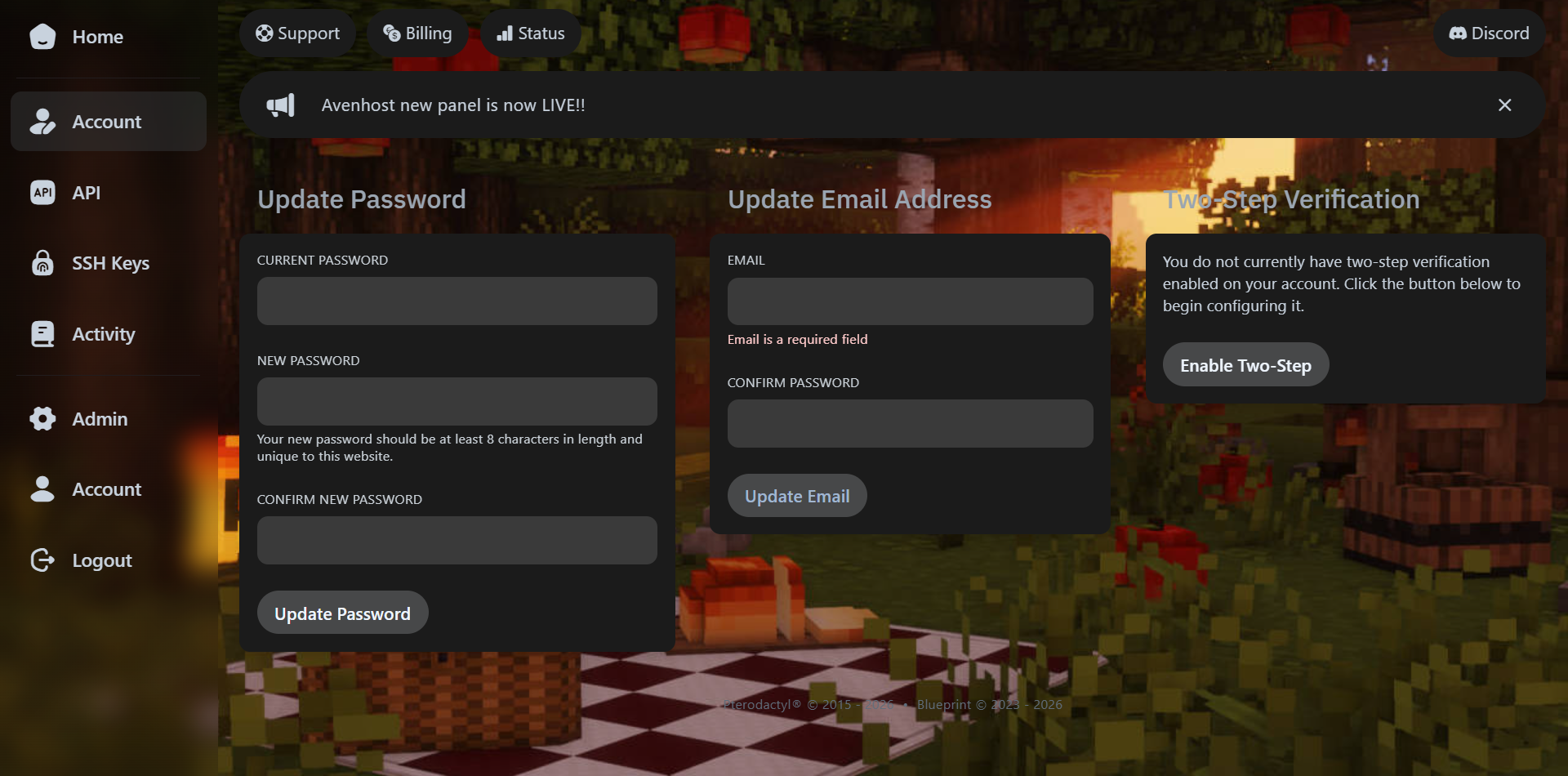
Log in to your Avenhost Game Panel. On your home dashboard, locate the Account tab in the navigation menu (usually found in the top right or the sidebar).
2. Enter Your New Credentials
Once you are on the Account page, you will see a section for password management. Instead of clicking the 2-step verification options, focus on the password fields:
- Current Password: Type the password you are currently using to log in.
- New Password: Enter the new, secure password you wish to use.
- Confirm New Password: Type the new password again to ensure there are no typos.
3. Update Password
Click the Update Password button. Your session will remain active, but your new credentials will be required for any future logins or SFTP connections.
Forgot your password?
If you cannot log in to access this page, use the "Forgot Password" link on the main login screen or contact support via our Help Center.