How to Enable 2-Step Verification
Protecting your account with Two-Factor Authentication (2FA) adds an extra layer of security, ensuring that only you can access your game servers and sensitive data.
1. Access your Account Settings
From your main Home Dashboard on the Game Panel, look at the top right or the sidebar and click on the Account tab.
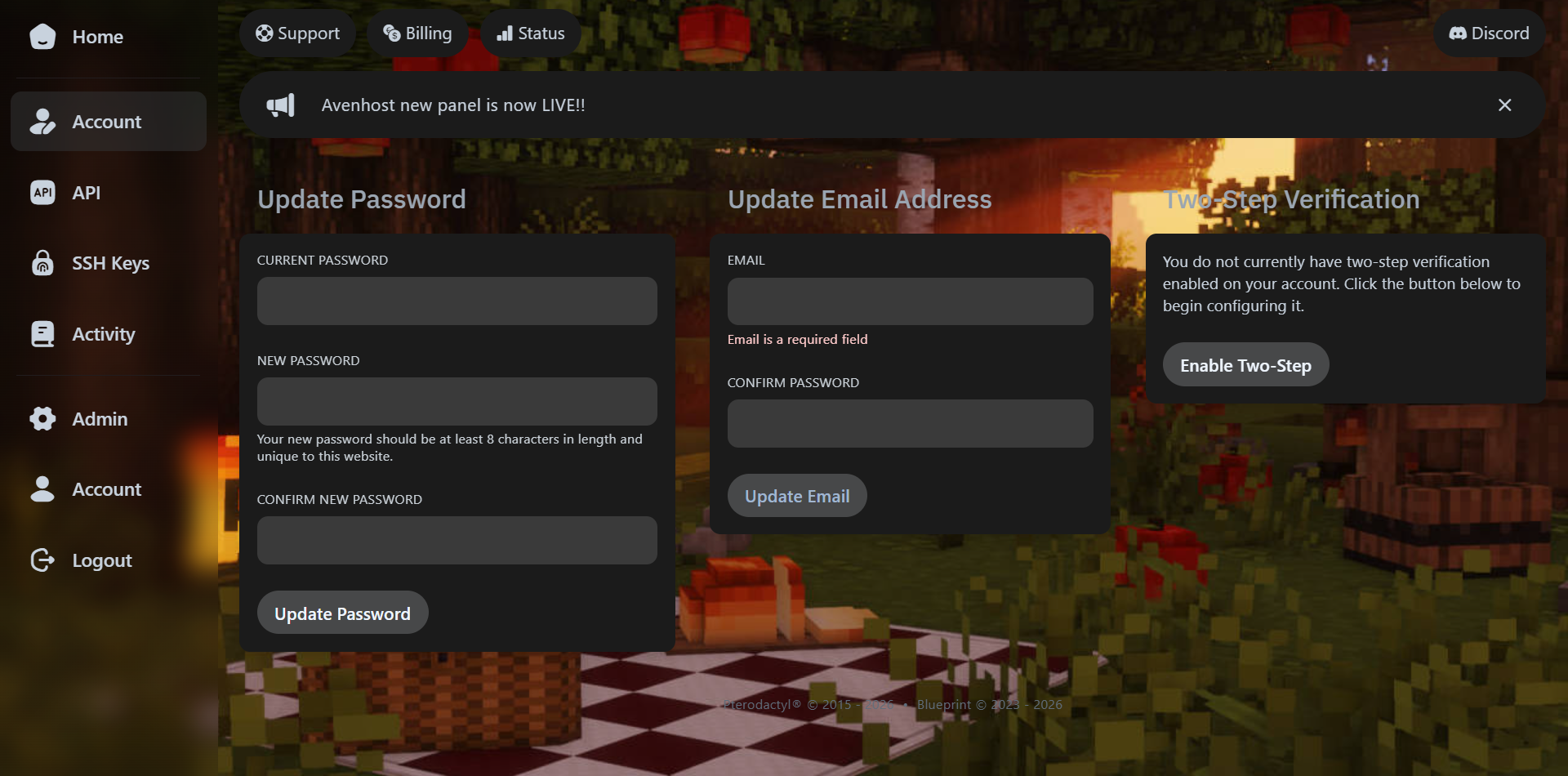
2. Enable 2-Step Verification
Within the Account Security section, locate and click the button labeled Enable 2-Step Verification. A QR code will appear on your screen.
3. Verify via Google Authenticator
Open the Google Authenticator app (or any TOTP app like Authy) on your mobile device:
- Scan the QR code displayed on the Avenhost panel.
- Enter the 6-digit code generated by the app into the verification box.
- Click Verify & Enable to complete the setup.
Important: Once enabled, you will be prompted for this 6-digit code every time you log in. Make sure to save any Backup Codes provided during the process in a safe place.
Need more help?
If you lose access to your authenticator app and don't have backup codes, please contact our support team via the Help Center to verify your identity and reset your 2FA.